

Screencast Tutorial
Step-by-Step Setup Guide
Download strongSwan
Download and install the strongSwan App from PlayStore here: strongSwan on Google Play

Download Certificate File
Download the IKEv2 certificate file to your Android device and click save, then open: IKEv2 Certificate File (.crt) — or if your device cannot open the .crt directly, download as .zip.

Install Certificate
When prompted choose the strongSwan VPN Client Import Certificate option.
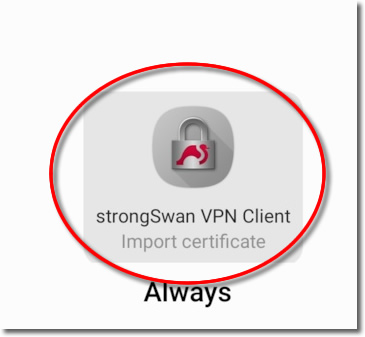
Import Certificate
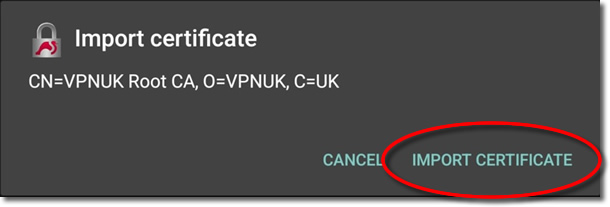
Click onto 'Import Certificate'.
Add VPN Profile
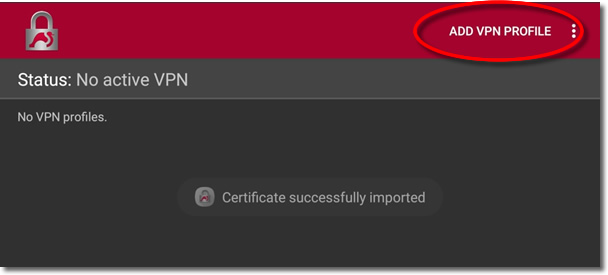
Click onto 'Add VPN Profile'.
Server
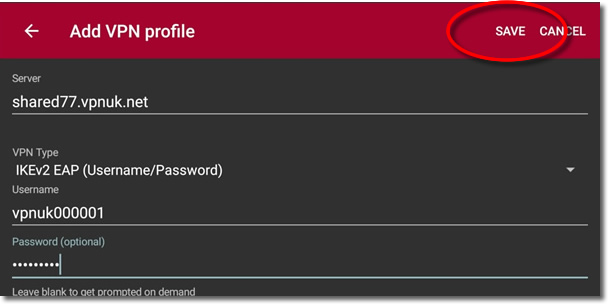
Enter your server address details into the 'Server' section. It's important that you enter the correct server address, particularly if you have a Dedicated IP account. Please choose the server that corresponds to your Personal IP.

VPN Type
Select IKEv2 EAP (Username/Password) for the 'VPN Type'.

Login Details
Enter your VPN login details into the 'Username and Password' fields.
CA Certificate
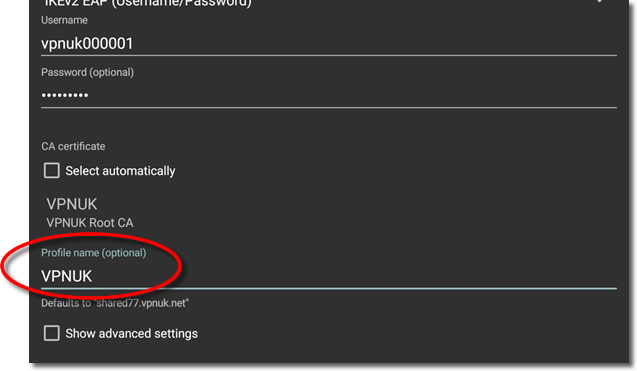
Uncheck the option to 'Select Automatically' and click onto 'Select CA certificate'.
User Certificate
Select 'User' certificates.
VPNUK Root CA
Click onto the 'VPNUK Root CA' certificate.
Profile Name
You can assign any 'Profile name' to the connection, particularly useful if you have multiple connections.
Save
You can now 'Save' this profile.
Connect
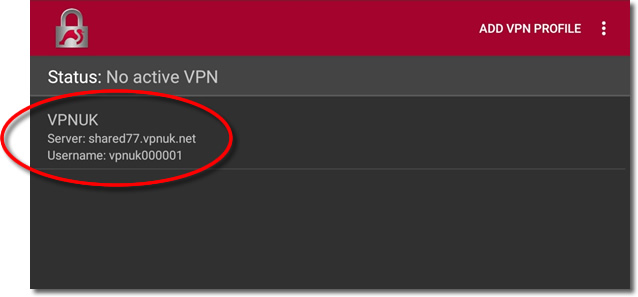
Click onto the connection profile to 'Connect'.
Connected
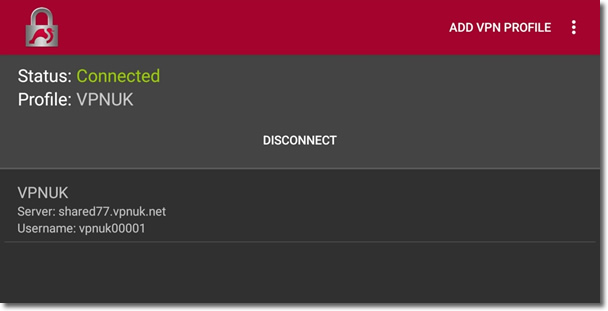
The VPN will now be connected and display a connected symbol in the task bar. You can disconnect the VPN by clicking onto 'Disconnect'.
Troubleshooting Guide
Your VPNUK account should work first time, every time. If you ever experience any problems with your VPN connection the first thing we urge you to do is contact us on our Live Help service — we can offer instant assistance with all connection issues and get you back online.