
Using an older Mac? If you are running macOS Monterey or earlier, use this guide instead.
Setting up L2TP/IPSec on macOS Ventura and newer
macOS Ventura (13) and later moved VPN settings into System Settings. This guide walks you through the complete setup of a native L2TP/IPSec connection to VPNUK — no additional software required. You will need your server address, VPN username and password, all available in your Welcome email or in the Client Control Panel.
Screencast Tutorial
Shared Secret: The VPNUK shared secret for all L2TP connections is 69000903
System Settings
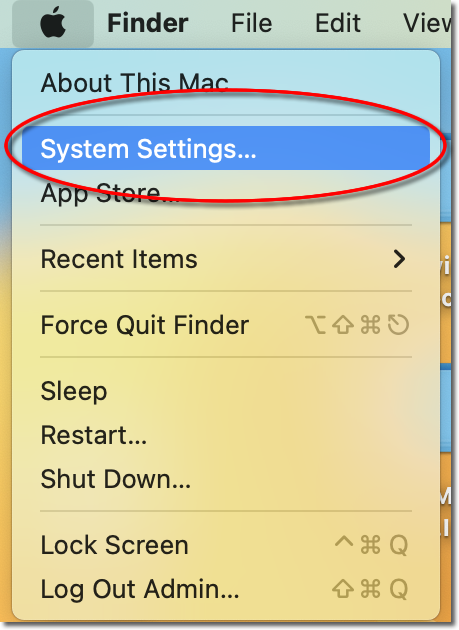
Go to the Apple menu in the top-left corner of your screen and select 'System Settings'.
Network
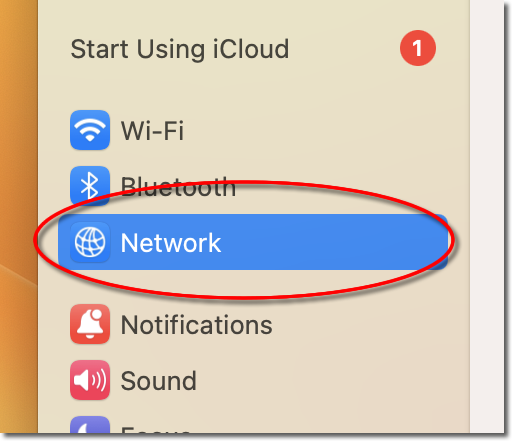
Select 'Network' from the left-hand menu in System Settings.
L2TP over IPSec
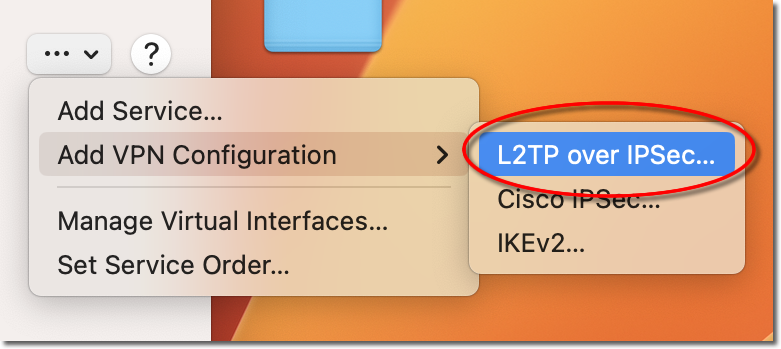
Click onto the dropdown menu and select 'Add VPN Configuration' followed by 'L2TP over IPSec'.
Enter Your Details
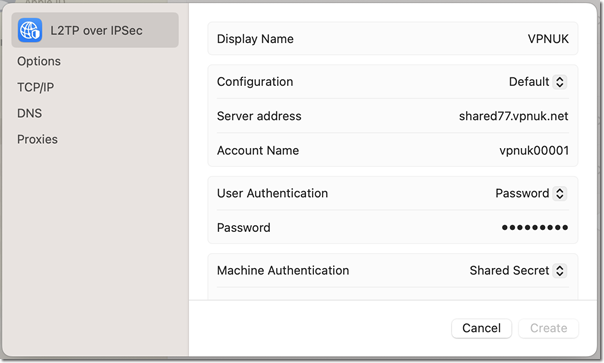
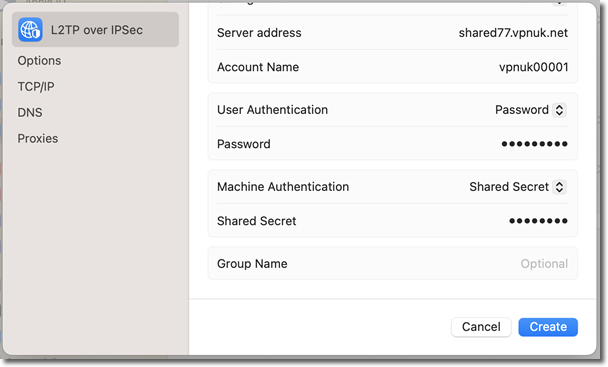
Enter a name for the connection in the 'Display Name' field, your VPNUK server address or IP into the 'Server Address' field, and your VPN account username in the 'Account Name' field. You can find your server information in your Welcome to VPNUK email or in the Members Area.
Authentication & Shared Secret
Enter your VPN login password in the 'Password' field and enter the Shared Secret 69000903 in the 'Shared Secret' field.
Send All Traffic Over VPN
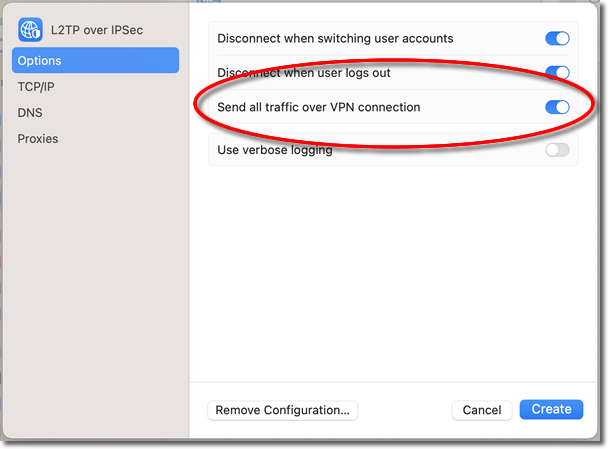
Enable the option to 'Send all traffic over the VPN' to ensure all your internet traffic is routed through VPNUK, then click 'Create' to save the connection.
Connect
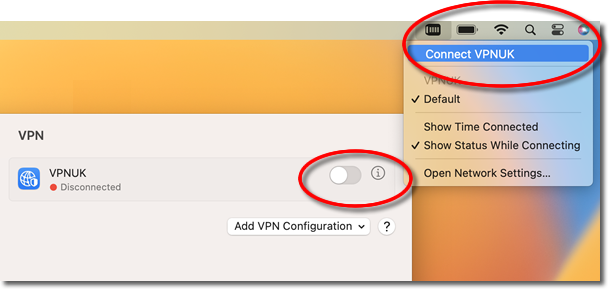
Toggle the connection to On to connect to VPNUK, or go to the VPN icon in your menu bar and click 'Connect'. The VPN icon will appear in your menu bar when connected.
Troubleshooting
Not appearing to be on the VPN?
Ensure 'Send all traffic over VPN connection' is enabled in the VPN settings. Go to System Settings → VPN → click the info (i) button next to your connection → tick the option.
ISP DNS Hijack / DNS Leak Protection
Some ISPs will hijack DNS requests. To fix this, go to System Settings → Wi-Fi (or Ethernet) → Details → DNS, and add a DNS server such as Google DNS 8.8.8.8 or VPNUK Public DNS 109.169.6.2.
Disable IPv6
Go to Terminal (Finder → Applications → Utilities → Terminal) and run:
sudo networksetup -setv6off Wi-Fi
sudo networksetup -setv6off Ethernet
Still need help? Our support team is available 24/7. Contact us here and we will get you connected.